ESP-IDF notes
ESP IoT Development Framework
ESP-IDF was installed to the default directory: C:\espressif\
I've first installed ESP-IDF using #1 below and using vs code extension from #2 below.
My ESP-IDF version: 4.4.2
Methods to install
The error-free method to install ESP-IDF is first run the Standalone installer and then add the VS Code extension.
1. Standalone installation via web installer: ESP-IDF v4.4.2 (this installs Espressif-IDE too)
(Standard Setup of Toolchain for Windows - ESP32 - — ESP-IDF Programming Guide latest documentation (espressif.com))
I've installed support for all boards. But can save space by selecting the boards you would like to use.
Take start menu shortcut for the 'ESP-IDF vXX':
Goto the folder containing the code.
   idf.py set-target esp32
   Idf.py menuconfig
   Idf.py build
   Idf.py -p <COMPORT> flash
   Idf.py -p <COMPORT> monitor
Espressif-IDE is pretty self-explanatory.
- Create a new project ESP-IDF -> Create using a sample.
- Select the target device. Check the correct COM port and set that too.
- Build and run.
- Use a terminal window to monitor the serial input from the device.
ESP-IDF syntax ex:
ESP_LOGI(TAG, "Turning the LED %s!", s_led_state == true ? "ON" : "OFF");   Log in information(I) level. Prints to the serial
vTaskDelay(CONFIG_BLINK_PERIOD / portTICK_PERIOD_MS);   Delay a given amount of ticks
gpio_reset_pin(BLINK_GPIO); Reset the state of a pin to default
gpio_set_direction(BLINK_GPIO, GPIO_MODE_OUTPUT);   Set direction
gpio_set_level(BLINK_GPIO, s_led_state);    Set pin HIGH or LOW
printf("Hello world!\n");   FreeRTOS printf, writes to the serial
2. As VSCode extension
Install VSCode.
Install the extension, 'Espressif IDF' from the extensions tab.
Ctrl+shift+P:ESP-IDF: Configure ESP-IDF Extension. And follow the config options.For each project use these commands,
ESP-IDF: Show Examples ProjectsESP-IDF: Set Espressif device targetESP-IDF: SDK Configuration editorESP-IDF: Select port to use
To build and flash
ESP-IDF: Build your projectESP-IDF: Size analysis of the binaries(Optional)ESP-IDF: Flash your projectESP-IDF: Monitor your device
Also check debugging over VSCode
3. As Eclipse plugin
- Install the plugin and the tools following instructions here.
- Use Eclipe plugin similar to ESP-IDE.
Importing a project from VS Code to ESP-IDE
(should be similar for Eclipse+ ESP-IDF plugin)
- Open ESP-IDF and goto
File>Import. - Select
Espressif>Existing IDF Project.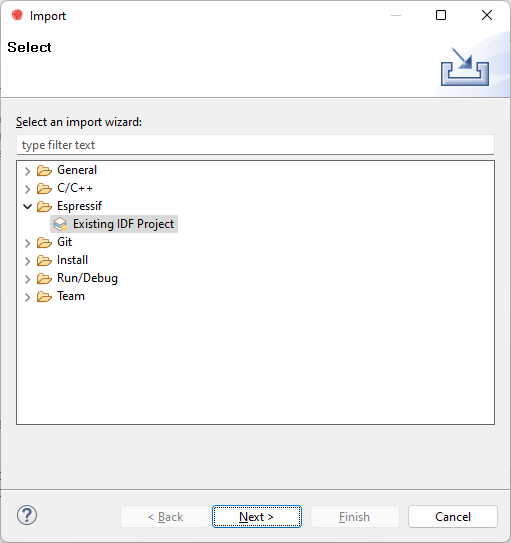
- Type in the project name, select the folder and tick
Copy project into workspaceif you want to make a copy.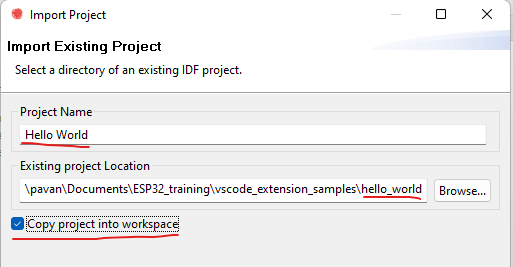
- Click
Finish.